# Installing the Eclipse PHP IDE
By Ben Ramsey
Published on December 18, 2006
I recently wanted to try out the [Eclipse PHP IDE](http://web.archive.org/web/20061214210415/http://www.eclipse.org/php/), the official [Eclipse](http://www.eclipse.org/) project that is endorsed/backed by [Zend](http://web.archive.org/web/20061218215628/http://www.zend.com/phpide) (I'm not entirely sure about the nature of their relationship, to be honest). I already had a working Eclipse installation that I had used to try out [PHPeclipse](http://web.archive.org/web/20050310012447/http://www.phpeclipse.de/tiki-view_articles.php) for Eclipse (not to be confused with the PHP IDE), so I didn't want to bother downloading a brand new full package of Eclipse that includes the PHP IDE and all its requirements. So, I set about on a tedious journey to figure out how to install PHP IDE using the Eclipse Update Manager. These are my notes.
**NOTE:** If you don't already have a working copy of Eclipse and you want to try out the PHP IDE, then these notes are not for you. Simply [download the full package](http://web.archive.org/web/20061218215628/http://www.zend.com/phpide#all_in_one) and install it. Everything should work fine out of the box. _These notes are for those who have a working installation of Eclipse, want to install PHP IDE via the Update Manager, and are having trouble finding all the download sites for the PHP IDE prerequisites._
## Disable PHPeclipse (if needed)
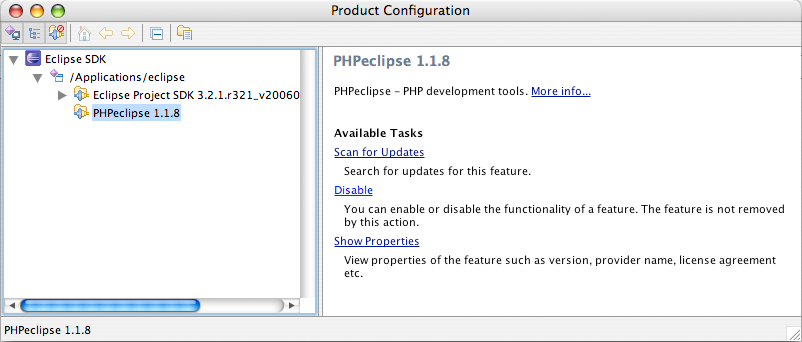
First off, if you have PHPeclipse installed, you'll need to disable it. Navigate to `Help > Software Updates > Manage Configuration`. From the tree on the left, find PHPEclipse, highlight it, and choose the "Disable" link from the pane on the right.
^^^
[](http://www.flickr.com/photos/benandliz/326246323/)
^^^ **Figure 1.** Disabling PHPeclipse.
## Install the PHP IDE Prerequisites
The PHP IDE [installation page](http://web.archive.org/web/20061217043901/http://www.eclipse.org/php/install.php) lists a handful of runtime prerequisites for the PHP IDE plugin. However, it doesn't list any URLs directing you to where the projects are located or what Update Manager URLs to use. Thus, I'm providing those links here.
^^^
[](https://www.flickr.com/photos/benandliz/326246325/)
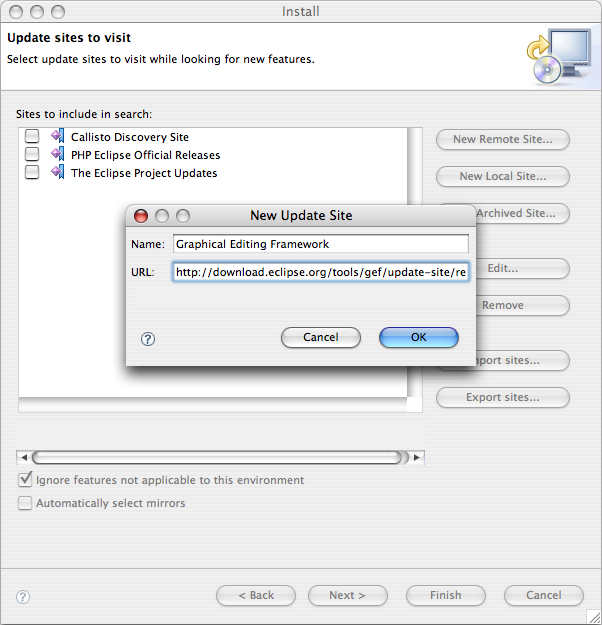
^^^ **Figure 2.** Setting up a new update site.
For each of these prerequisites, you must follow these steps to install the package via the Eclipse Update Manager:
1. Open the Update Manager at `Help > Software Updates > Find and Install...`
2. Select "Search for new features to install" and click the Next button
3. Click the `New Remote Site...` button on the right
4. Enter a name and the update URL for the update site, click `OK`
5. Make sure the checkbox next to the new site is checked and click `Finish`
6. Follow the prompts to install the new package
Now that you know how to install the packages, here are the prerequisites and their update URLs:
* [**Graphical Editing Framework**](http://www.eclipse.org/gef/) (GEF) \
UPDATE URL: `http://download.eclipse.org/tools/gef/update-site/releases/`
* [**Eclipse Modeling Framework**](http://www.eclipse.org/emf/) (EMF) \
UPDATE URL: `http://download.eclipse.org/tools/emf/updates/`
* [**Java EMF Model**](http://web.archive.org/web/20061214211338/http://www.eclipse.org/vep/WebContent/main.php) (JEM) – from the Visual Editor Project (VEP) \
UPDATE URL: `http://download.eclipse.org/tools/ve/updates/1.0/`
* [**Web Tools Platform**](http://www.eclipse.org/webtools/) (WTP) \
UPDATE URL: `http://download.eclipse.org/webtools/updates/`
## Install the PHP IDE Plugin
Now that you have installed all the prerequisites, you are ready to install the PHP IDE plugin, and you shouldn't encounter any problems now since all the prerequisites are available. To install the PHP IDE plugin, follow the same directions above to set up the PHP IDE update site in the Update Manager using the following update URL:
* [**PHP IDE**](http://web.archive.org/web/20061214210415/http://www.eclipse.org/php/) \
UPDATE URL: `http://download.eclipse.org/tools/php/updates/`